
Your event is next week. You’ve sent the invite. Now you need confirmations and reliable reminders—without spending hours on manual follow‑ups. If you are new to automation, start with our guide to WhatsApp Automation 101.
WhatsApp event notifications can automate reminders and track responses where attendees already spend time. Start small, prove it works, then scale.
What WhatsApp Event Notifications Do
WhatsApp event notifications are scheduled or triggered messages that:
- Remind attendees about dates, times, and location
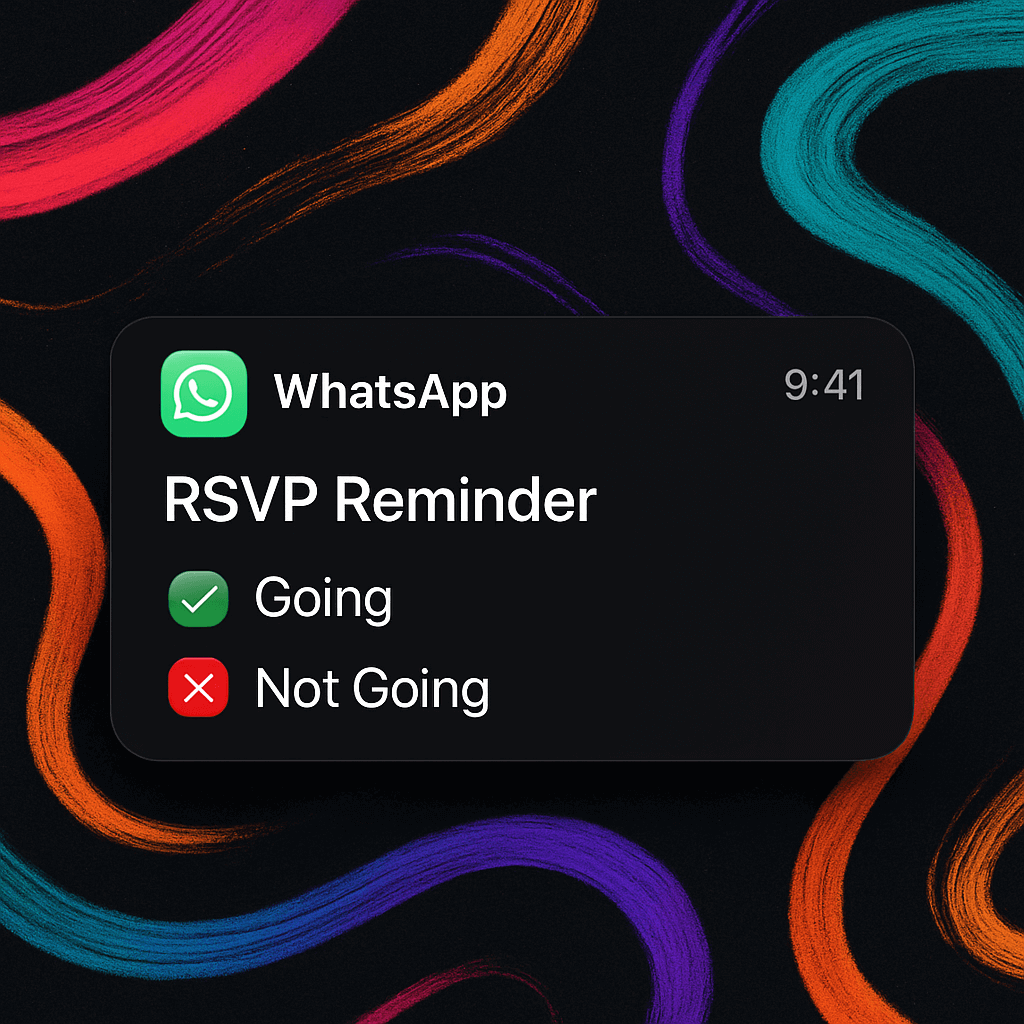
- Collect RSVPs or confirmations
- Share last‑minute details (parking, check‑in, materials)
- Provide a quick contact path for questions
For common event questions, a simple WhatsApp auto reply flow can send instant answers while your team focuses on the event.
WhatsApp also supports creating events in groups/Communities with RSVP tracking, so members can respond in‑chat and receive updates.
Why They Matter
- Reduce no‑shows: Timely reminders keep your event top‑of‑mind.
- Save time: One message to many people instead of dozens of 1:1 pings.
- Higher visibility: Attendees open WhatsApp more frequently than email.
Three Ways to Start Simple
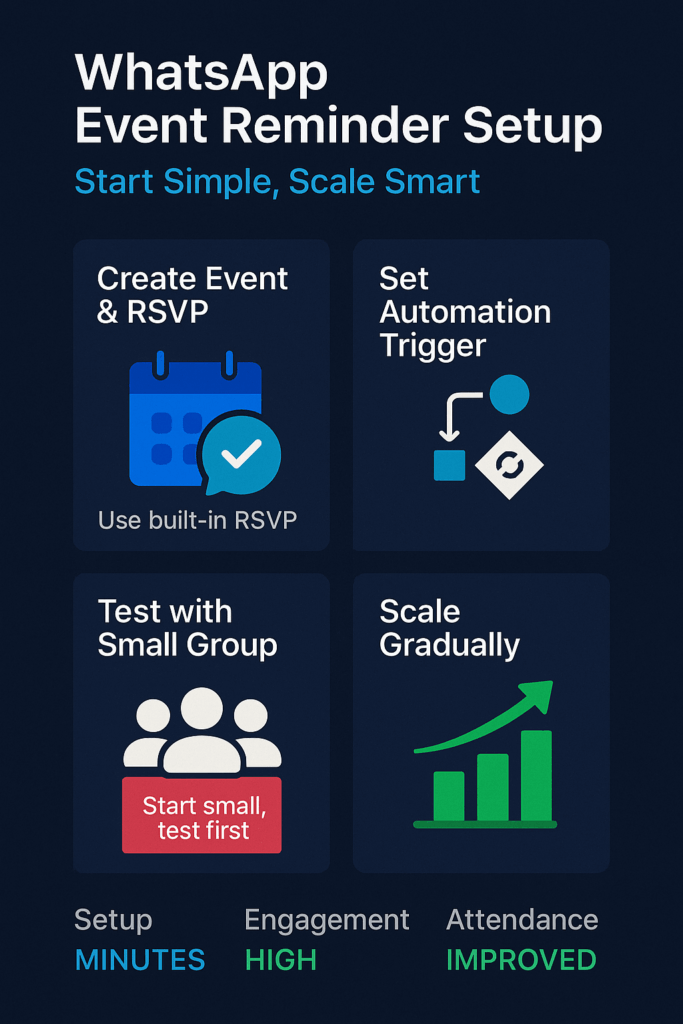
1) Use WhatsApp’s Built‑In Events (Groups/Communities)
- Owner: Event coordinator
- Effort: ~10 minutes
- Goal: RSVP count appears in the chat
- How: Create an event in your group, include date/time/location, and ask members to RSVP. Post one reminder 24 hours and 2–3 hours before start.
2) Click‑to‑WhatsApp RSVP + Broadcast List
- Owner: Marketing/host
- Effort: ~20 minutes
- Goal: Build an opted‑in list for reminders
How:
- Add a link like: https://wa.me/?text=RSVP%20YES%20for%20
- When people confirm, add them to a Broadcast List for reminders.
- Note: Broadcasts only reach contacts who saved your number. Ask them to save it during RSVP.
3) One Simple Automation via a Business Provider
- Owner: Operations/marketing
- Effort: ~30–60 minutes
- Goal: Send a template reminder when someone registers
How:
- Use a WhatsApp Business Platform provider (e.g., Twilio, MessageBird, 360dialog, Gupshup) to send approved template messages to opted‑in contacts, and plug them into a simple WhatsApp chatbot or flow.
- Connect your form/CRM/Calendar via native connectors or a workflow tool (e.g., Make, Zapier with a provider connector).
- Trigger schedule: 72h, 24h, and 2h before the event.
Example template (short, compliant):
“Hi {{name}}, reminder: {{event_name}} on {{date}} at {{time}} — {{location}}. Reply 1 to confirm, 2 to cancel, 3 for details.”
Key Signals to Track
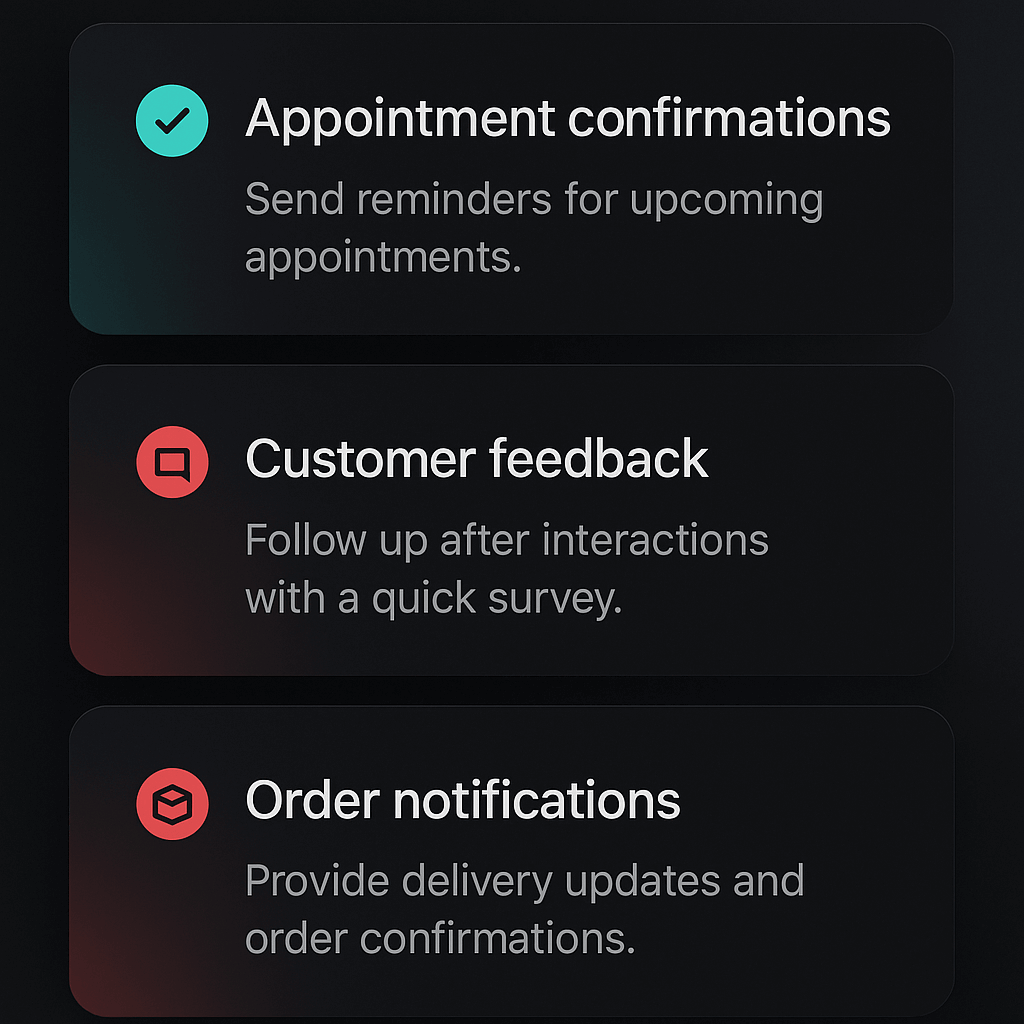
- 24‑hour response rate: % who confirm within a day of the reminder
- Read receipts in group posts: Are messages being seen?
- RSVP deltas: Changes from Going → Maybe/Not Going before event day
- Last‑minute questions: High volume suggests your reminder lacked crucial details
- No‑show rate vs RSVP: Adjust reminder timing/content based on gaps
These metrics help you refine your flows and improve your wider WhatsApp Automation 101 setup over time.
Safeguards and Good Practices
- Get consent: Only message people who opted in (reply, form checkbox, or group membership with clear expectation).
- Keep it brief: One purpose per message; link to more info if needed.
- Respect quiet hours: Schedule sends at reasonable local times.
- Use approved templates for business‑initiated messages via providers.
- Provide an easy out: “Reply STOP to opt out.”
- Have a fallback: If automation fails, be ready to send a manual group update or email.

A Minimal Playbook You Can Run This Week
- Create: One event post in your WhatsApp group with RSVP.
- Confirm: Share a pinned message with the agenda, location pin, and arrival instructions.
- Remind: Send reminders at T‑24h and T‑2h. Include parking, check‑in, and a contact.
- Follow up: Post slides/resources after, and a quick feedback prompt.
Why Start Now
Small tests de‑risk larger events. If you save even two hours of manual follow‑ups or reduce no‑shows by a few seats, the setup has paid for itself—and you’ll have a blueprint ready for your next event. Once this is working, you can reuse the same flows beyond events using our guide on how to automate WhatsApp messages.
FAQs
In your group chat, tap the + icon, select Event, add details, and enable RSVP. Members can respond Going, Maybe, or Not Going directly in the chat.
Yes! Use Zapier to connect your calendar or forms to WhatsApp. It automatically sends notifications when events are added or updated.
Members who responded Going or Maybe will automatically receive a notification when you cancel, so everyone stays informed.